Category Archives: Uncategorized

PCSD – ACTIVE COLUMN

B ACK TO HOME PAGE


********************
ACTIVE COLUMN
********************

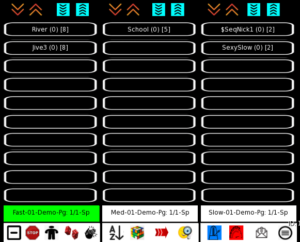
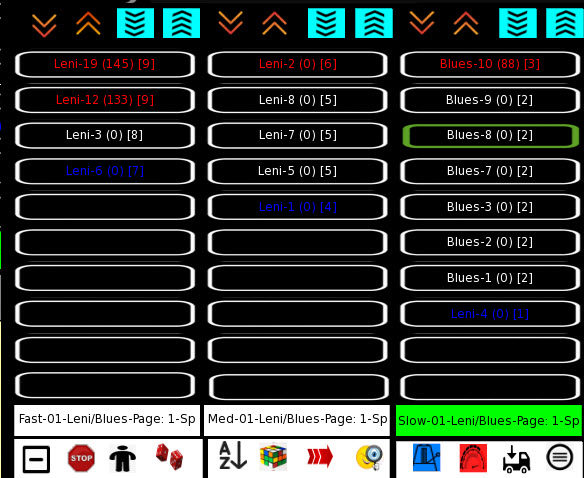
Just above the bottom is the has Active Column row of 3 buttons, (i.e. the Yellow colored button. One button for each column). Only 1 column can be active at a time. Inactive columns will be colored white. The Active Column will be either GREEN, YELLOW, or RED.  You must make a column ACTIVE prior to SORTING.  Also you must a column ACTIVE prior to using the NEXT DANCE (arrow) button or the RANDOM DANCE (dice) button.

You can customize the titles of the Active Column bar by editing the *dances notecard. Default names are Fast, Medium, and Slow.

/* TITLES
T,Left,Fast
T,Middle,Med
T,Right,Slow

Two characters serve as an additional reminder of the sort order for each column. Sp = Order By Speed descending down. Nn = Order By NickName Ascending down. Nc = Order By the order the dances are on the notecard.

Also, GREEN means column is sorted by SPEED. YELLOW means column is sorted by  NickName. RED means the column is sorted by Notecard order. You can specify what you want the initial sort order for all columns to be. Default is By Speed (GREEN).

This bar (3 buttons) also indicate the current loadset for that column by LoadSet ID (01-30) and LoadSet Name and the Page (1, 2, or 3). You can have  mix of different loadsets, 1 different loadset for each column, if you like.

PCSD – NAVIGATION

B ACK TO HOME PAGE

****************
NAVIGATION
****************

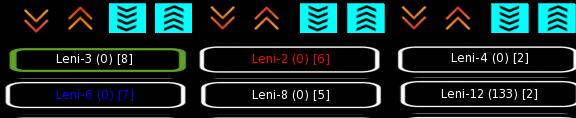
The top bar below has ORANGE up/down arrows used to scroll to the next or previous page when there are more pages existing for a given speed-column, forward or backward.  There are a maximum of 10 dances per column for a given page.

There are a minimum of 0 (zero) and a maximum of 3 pages per column (i.e. 0-10 column-songs would just have 1 page. 11 to 20 column-songs would have 2 pages. 21 to 30 column-songs would have 3 pages).

NOTE: Loadsets with zero songs for a given column will be skipped when scrolling forward or backward, EXCEPT for the very 1st loadset. It will ALWAYS be displayed for each column even if there are zero animations for that column.

The top bar below has BLUE arrows used to either scroll to the next or previous loadset (set of 30 dances) when there are more loadsets existing for a given speed-column, forward or backward. There are a minimum of 1 (one) and a maximum of 30 loadsets per column.

PCSD – FUNCTION BUTTONS

B ACK TO HOME PAGE


********************************
FUNCTION BUTTONS
********************************


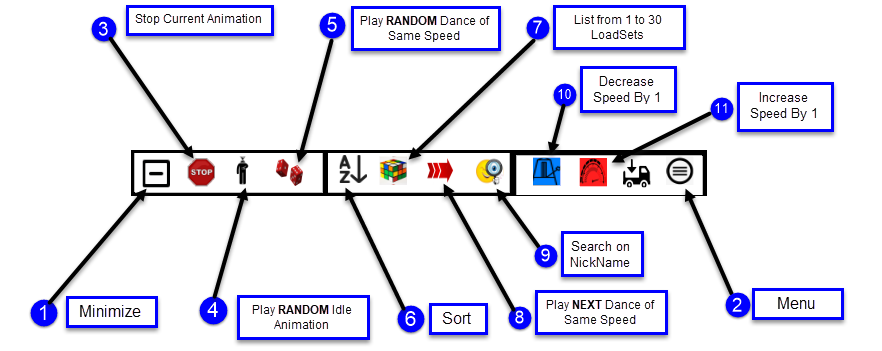
1 = Minimize Button – this button minimizes the HUD, replacing it with a 1 square MAXIMIZE icon/button that appears by default in the lower right corner of your screen.

It is editable, along with the main HUD, such that you can position your HUD in any of the 4 corners.


2       Menu -This button pops up and displays the menu


3 = Stop button. This button will STOP the currently playing animation.  If C,02,AutoIdleOnStop,yes exists in the *dances nc, then the FIRST time you press STOP, it will auto-play a random Idl eAnimation. An idle animation is used to play during the occasional SILENCE between songs. Idle animations appear in the *dances nc with a type of ‘A’ and dance-id of “00“.  The SECOND time you press STOP without playing a normal dance animation will actually STOP the Idle Animation and you will return to your default AO. If there are dancers dancing in sync via invites, with the HUD owner then all dancers will STOP dancing and will play the IDLE animation.


4 =   Idle Animation – This button plays a RANDOM IDLE animation from 1 of the existing idle animations.  An idle animation is used to play during the occasional SILENCE between songs.  It ignores AutoIdleOnStop setting  in the *dances nc and chooses an animation that has “00” in its dance-id position. If only 1 exists then that idle-animation will always be chosen.  IF more than one idle animation exists, then a random idle animation will be chosen and played.


5 = Random Animation – This button plays a RANDOM DANCE animation that is:
1) on the active COLUMN and

2) on the currently displayed PAGE and
3) is the same SPEED as the last selected dance


In the above example, pressing the DICE button will randomly select and PLAY one of the following animations in the SLOW column on Page 1 from:  Blues-1, Blues-2, Blues-3, Blues-7, Blues-8, Blues-9


6 =   Sort  – There are 3 sort orders that toggle when the AZ button is pressed:

The default is Sort by Speed/BPM  (Sp) Descending: (Fastest at top)

After 1st click, it then sorts by NickName (Nn) Ascending (A at top, Z at Bottom)

After 2nd click, it sorts by DanceId Ascending (01 at top, 30 at bottom)  01-10 = page1, 11=20 = page2, 21-30 = page3. This is the same as DanceId Order (Da), assuming your DanceIds are in order.

After 3rd click, it reverts back and sorts by Speed/BPM (Sp) Descending (: (Fastest at top)

Animations of the same speed-value, sort by BPM-Descending.  This allows you to make even finer delineations of speed within a general speed value.

If you want to sort strictly by BPM then make all the speed-values for a given column the same. (i.e. 5 for all the dances in the middle column).

If you want a different Initial-Sort-Order then edit the *dances notecard and change the InitialSortOrder entry to:
SortBySpeedDesc or SortByNameAsc or SortByDanceIdAsc

Each column can be sorted differently at the same time.

NOTE: When all dances are the same speed and the sort order is SortBySpeedDesc, then the cannot be determined so no expectation should be made!


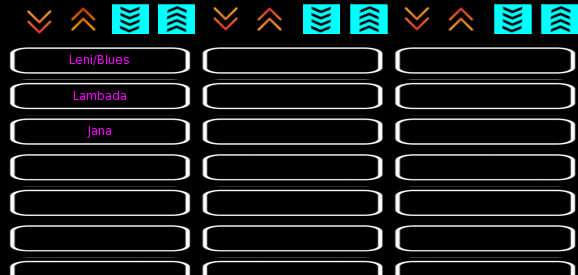
7 =   List All LoadSets – this button will list from 1 to 30 loadsets in loadset order.  This allows you to quickly select which loadset you want to load. It’s contents will display using all 3 columns if animations exist for each speed-set.  Three speed-sets exist. One for Fast (7,8,9), Medium (4,5,6) and Slow (1,2,3). Simply click on the button that has the loadset name you wish to load. It will replace all 3 columns with the 1st page of each column for that loadset. Columns can be empty. At least 1 column will have something in it.

In the above example I have a total of 3 loadsets named Leni/Blues, Lambada, and Jana. This list will always appear in purple.


8 = Next Animation – This button plays the NEXT DANCE animation that is going down the column that is:

1) on the active COLUMN and
2) on the currently displayed PAGE and
3) is the same SPEED as the last selected dance


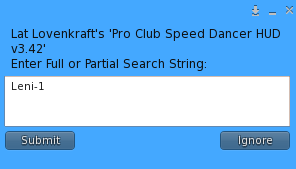
9 = Search – The SEARCH feature is unique to dance HUDS as it allows you to find, locate, and present a nicknamed animation thru the SearchEngine provided.  This assumes that: 1) the Search Engine is either attached or in the same region/sim at the time of SEARCHING AND was present when the animation nicknames were ADDED.  Access the MENU then press the Search Button.

It will return a full-match or find the 1st 10 near matches base don a partial search.  The search-box is CASE-SENSITIVE. 

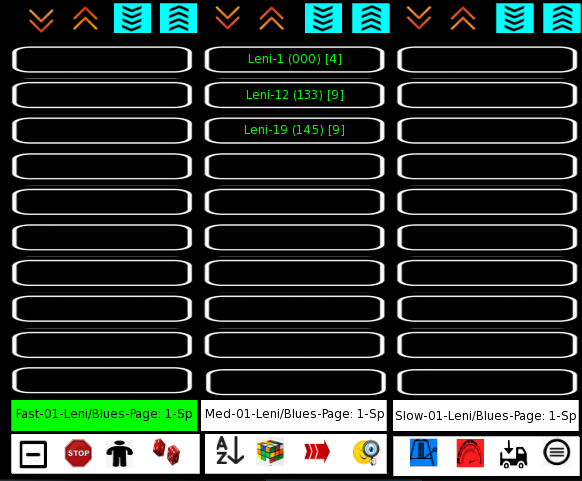
The initial partial search results always appear in the center column and in GREEN type.

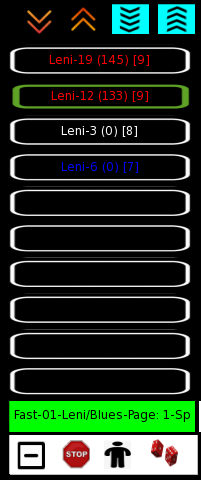
Assuming we selected Leni-12 as the animation we were actually looking for, when we press it, the full loadset is loaded and the result is selected and the page (1 to 3) is positioned and the results is selected in the appropriate column.  In this case, the FAST column and the 2nd entry.  Other columns will also appear for this LoadSet (Leni/Blues) IF there are also either Medium and/or Slow animations.


10 –  Decrease Speed – clicking once on a playing animation will decrease its speed by one, TEMPORARILY (until the next reset or EraseAllData…a LOAD will NOT remove TEMPORARY speed or bmp assignments.  The screen will redisplay, changing color of the changed animation AND, if necessary, indicating that the column of the animation MAY change meaning that the animation may show up in a different column.  You MAY NOT see the change IF the change forces the animation to appear on a different page.   Some people think this makes the actual dance move faster but that is not the case.

IMPORTANT: The HUD follows the updated cell and will load a new LoadSet if it has to.  Example:  Imagine you have loadset 02 in column #3 and LoadSet 05 in Column #2. If you adjust a dance in Column #2 DOWN  from a speed of 4 to a speed of 3, it will end up in Column #3 since 1s, 2’s, and 3’s only show up in Column #3.  Well it would be for LoadSet 05 so Column #3 would load LoadSet 05, go to the page that has the affected animation AND Select it with a green box.


11 –  Increase Speed – clicking once on a playing animation will increase its speed by one, TEMPORARILY (until the next reset or EraseAllData…a LOAD will NOT remove TEMPORARY speed or bmp assignments.  The screen will redisplay, changing color of the changed animation AND, if necessary, indicating that the column of the animation MAY change meaning that the animation may show up in a different column.  You MAY NOT see the change IF the change forces the animation to appear on a different page.   Some people think this makes the actual dance move slower but that is not the case.

IMPORTANT: The HUD follows the updated cell and will load a new LoadSet if it has to.  Example:  Imagine you have loadset 02 in column #1 and LoadSet 05 in Column #2. If you adjust a dance in Column #2 up from a speed of 6 to a speed of 7, it will end up in Column #1 since 7’s, 8’s, and 9’s only show up in Column #1.  Well it would be for LoadSet 05 so Column #1 would load LoadSet 05, go to the page that has the affected animation AND Select it with a green box.

12 –  Invite – this scans the area the number of meters specified in the *dances nc on the ScanRange entry line,  Default is 20 meters. You can change this value.  It will list the 20 listing the nearest avatars, allowing the invitation of 1 of those avatars (to dance in synchronization with the HUD owner.  If the HUD owner is currently dancing then a 4 second delay will occur and then the invited dancer will sync up with the current animation. Is the HUD owner is not currently dancing then when the HUD owner DOES decide to start dancing, all the invited dancers will sync-dance. Currently, the maximum dancers is 20 plus the HUD owner for a total of 21  The invitation can be repeated up to 20 times.

There a dance chimera which defaults to being worn on avatar-center when attached by the HUD-wearer. Anyone who touches it will automatically be invited to dance and added and sync-danced.  There are also dance pads that, when sat on, will automatically invite and sync the sitting dancer.

13 –  – Clap – This is a toggle that becomes GREEN when activated.  It will play an animation without stopping the currently playing animation.  This allows you to play 2 different animations at the same time, assuming that they control different parts (bones) of the avatar.

You specify  an entry in the *dances nc.  Example: A,99,01,HandClap

99 says this animation, HandClap, will play when the CLAP button is toggled on.  This can be ANY animation that works for you and can be any name. This is the actual name of the animation that will play. There is NO NickName for this option.

PCSD – OVERVIEW

B ACK TO HOME PAGE


*************
OVERVIEW
*************

This design aids in quickly choosing a dance/animation that is slightly slower or faster than your currently playing dance/animation.

Fast dances are in the LEFT column.
Medium speed dances are in the MIDDLE column
Slow speed dances are in the RIGHT column.

Many people prefer to have the slow dances appear in the left-most column. No problem. Just use 7,8,9 for slow dances with 9 being the slowest and 1,2,3 for the fastest dances with 1 being fastest and will appear in the right-most column.

Dances will be sorted by speed, with highest numbers on top, and lowest numbers at the bottom and will be color coded by speed. (If you choose to have slow dances appear in left-most column, then the slowest dances will appear on the top of each column with the faster danced appearing at the bottom of each column).

You use an notecard to associate an animation name with a speed and nickname and optionally, a BPM (beats-per-minute).
One line entry per dance/animation.

A unique feature of this HUD is that you can reuse the same animation name as long as you give it a new unique NickName. This way you can have it in different combinations with other animations.

You can have a maximum of 30 dances in a LoadSet.
You can have a maximum of 30 LoadSets.
You can display up to 10 dances per column-page.
You can have from 0 to 3 pages of dances for a given column.
So you can have up to 900 dances/animations per HUD.
You can assign your own custom-name to a LoadSet.  This sample screen just uses LoadSet-1. It could be Bollywood, or Latin, as an example.

There are 9 speeds numbered from 1 to 9.

You assign the speed value to a given animation in the *dances notecard inside the HUD.   Animations with a speed of 9 are faster than an animation with a speed of 8. A speed of 8 is faster than a speed of 7. Etcetera.

Values of 7,8, or 9  appear in the Column-1 (Left)
Values of 4,5, or 6  appear in the Column-2 (Middle)
Values of 1,2, or 3 appear in the Column-3 (Right)

By default, 9, 6, and 3 speeds appear in RED.
By default, 8, 5, and 2 speeds appear in WHITE.
By default, 7, 4, and 1 speeds appear in BLUE.
You can override these color assignments on the *dances notecard inside the HUD.


This HUD organizes dances by speed from fastest to slowest.  It makes use of: 1) Columns, Colors, Speed Numbers, and BPM.

It can sort columns by Speed/BPM OR alphabetically by NickName of the animation OR by DanceId Order.

PCSD – SEQUENCING

B ACK TO HOME PAGE


Quick-And-Dirty

Creating a NEW Sequence:

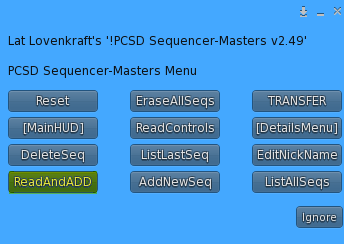
Step  1 – Add a new entry into the *masters notecard inside the  Sequencer-Masters Engine.

Example:

S,001,$My1stSeq

Step  2 – Add new entries  into *seq1 notecard inside the Sequencer-Details Engine. Example:

01 | 20.8 | tap dance
02 | 24.5 | Jive-3

Note: the 001 connects and associates with the 1 in *seq1

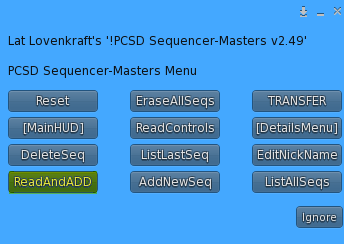
Step  3 – Press ReadAndADD button on the Sequencer-Masters Engine.
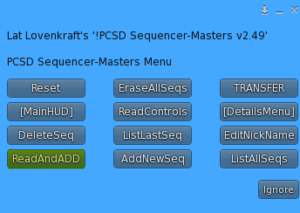
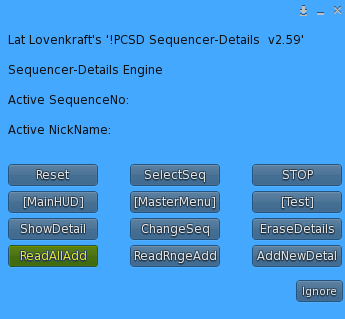
Step  4 – Press ReadAllAdd button on the Sequencer-Details Engine.

Step  5 – Press TRANSFER button on the Sequencer-Masters Engine.
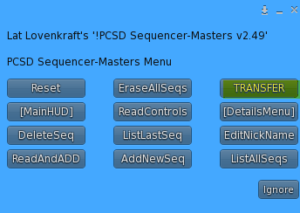
Step  6 – Press the button on the MainHUD that matches the sequence nickname you created ($My1stSeq) to play it.|
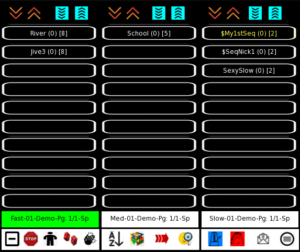
This assumes you added it as an entry into your *dances notecard inside your MainHUD.  Example:

/* DANCES
A,01,01,5,Cool For School,School,0
A,01,02,8,Jive-3,Jive3,0
A,01,03,8,Riverdance,River,0
A,01,04,2,Sexy slow groove dance,SexySlow,0
A,01,05,2,*seq1,$My1stSeq,0

***************************************
***************************************
EraseAllData vs Reset

MAIN-HUD

EraseAllData button – Erases the MAIN-HUD database of dances/animations then rereads all the ‘A’ notecard entries and adds them to the MAIN-HUD database

Reset button – will reread and re-add the ‘A’ records, changing the database if any of the ‘A’ records have changed,

SEQUENCER-MASTER ENGINE

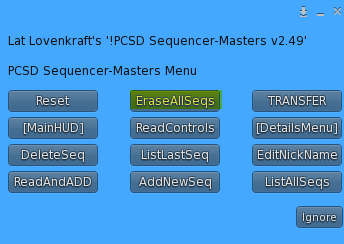
EraseAllSeqs button – Erases ALL sequences in both the SEQUENCER-MASTER ENGINE and the SEQUENCER-MASTER DETAILS databases,

Reset button – will only read the CONTROL type ‘C’ entries.

ReadControls button – will only re-read the CONTROL type ‘C’ entries without resetting the SEQUENCER-MASTER ENGINE

ReadAndAdd button- will read ALL the type ‘S’ entries. It will give a harmless error if the sequence-master already exists.

SEQUENCER-DETAILS ENGINE

EraseDetails button – gives you an option to erase a single DETAILS entry OR erase ALL details, if you specify ‘ALL’. It does NOT affect the SEQUENCER-MASTER ENGINE.

Reset button – will read the type ‘C’ entries but does not affect records in the database. You must explicitly press a button to add Sequencer-Detail records to the database

ReadAllAdd button – will read ALL the *seq notecards and their contents.

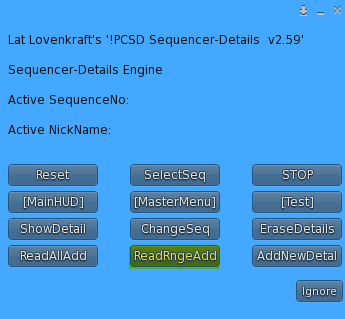
ReadRngeAdd button – will read the range of sequences specified by the Range,?,? entry in the *sequences notecard in side the SEQUENCER-MASTER DETAILS ENGINE, inclusively.. This method can reduce a lot of notecard read time when you have a LOT of sequences by only reading the sequence(s) that are new or have changed.

AddNewDetal button – allows you to bypass using notecards and CREATE new sequencer-details using the menu.

ChangeSeq button – allows you to bypass using notecards and CHANGE an existing sequence that may have been created using a notecard OR via the menu AddNewDetal button

***************************************
***************************************

Overview

A sequence is more than 1 dance that play in sequence with specified durations for each one.  This sequence will play with one button-press just like a normal single animation.

This requires the new SEQUENCER-ENGINE to CREATE and PLAY your sequences.  The SEQUENCER-ENGINE consists of a SEQUENCER-MASTER ENGINE and  SEQUENCER-DETAILS ENGINE.  These must be attached or rezzed in the same sim as the Main HUD wearer.

A SEQUENCE has a unique identifier that is a number between 001 and 900. Each sequence will have a NickName. The Nickname is what appears on the MainHUD button that you will press when you want to play a sequence.  The NickName helps you remember what the sequence is about since just referring to a number 001-900 is not that helpful.

Each Sequence has 1 or more DETAILS.  A  DETAIL has 1 duration (seconds) and 1 real animation name. You can have about 40 to 45 details per sequence, though it is unlikely you will ever have more than 10 DETAIL entries for a given SEQUENCE.

Below are the instructions on how to create and manage  SEQUENCE MASTERS and SEQUENCE DETAILS.

Sequences live/exist in the SEQUENCER-ENGINE. To use them they must be TRANSFERRED to the MAIN HUD.  Two ways this happens:

1 – Pressing Reset button on the MAIN HUD
2 – Pressing TRANSFER button on the SEQUENCER MASTER

***************************************
***************************************

Case-Study
 

Sequencing is the technique of specifying more than 1 animation that you want to play in a particular sequence and then have it loop in the same way that a single animation usually loops when dancing by specifying the actual name of the animation AND the duration, how long you want an animation to play before starting the next animation in the sequence.

Animations are often sold in packs of from 2 to 6 dances.  They may have been designed to present and play in sequence.  By pressing one button, you can make them play in sequence, one after the other, instead of having to press a button for each dance, trying to time/guess when one animation ends so you can start the next animation in the sequence.

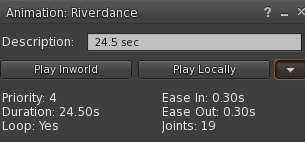
The system only needs to know the name of the animation, and how long you want it to play. Usually you want it to play the full length. You may have to click on an animation twice to get the duration but it is available in all animations.
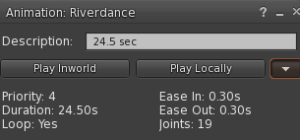
In the above example, the name of the animation is Riverdance. The duration, taken from the value after Duration: is 24.50 s (seconds);

You may have problems playing an animation whose priority is lower than the currently playing animation.

******************

The system identifies a sequence as a nickname just like there is a nickname for a single animation.  The only difference is that sequences always start with a ‘$‘ (dollar sign).
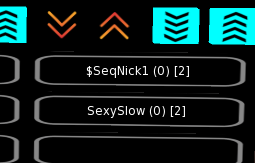
The sequence, arbitrarily named $SeqNick1, can be entered anywhere that a normal animation might appear.  A maximum length of 10 characters for the sequence nickname is allowed.

A sequence will have a speed and, can optionally, have a BPM (Beats-Per-Minute) assigned to it, just like a normal single animation.

You need 3 items to CREATE a sequence.  You need the same 3 items to PLAY a sequence.

MainHUD

– Sequencer-Master-Engine

– Sequencer-Details-Engine

All 3 can be attached, or rezzed on the ground in the same sim/region as the person using the system.  They are MOD so you can resize them and/or change their transparency. The Sequencer-Master Engine and Sequencer-Details Engine  do not ever have to be accessed directly.  Their menus can be accessed via the MainHUD.  It is often easier, though, to use the  MainHUD when you are not making many additions or changes. Both Sequencer-Master Engine  and Sequencer-Details Engine  can have their menus ALSO accessed by simply clicking on them.

Bring up the Sequencer-Master-Engine menu by either 1:  Clicking on the Sequencer-Master-Engine or Sequencer-Details-Engine
OR
By pressing the [Sequencer] button on the Main HUD from the [Analytics] Sub-Menu, assuming the Sequencer-Masters Engine is in the region and attached or rezzed.

You can have a mix of attached and rezzed.  It is recommended that you wear them as attachments when in normal use…but…you may find it easier to rez them on the ground when creating sequences as you can more easily load non-full-perm animations .

There are 2 ways to create sequences. The traditional way by editing notecards. The modern way by using the HUD menus.  This modern way can save you time when you only need to add or change a few sequences.  It also expedites faster testing and retesting of a sequence. You can mix the 2 methods, editing notecards and using the HUD menus.

********************************
Method #1: Notecard Editing

The system comes with 2 sequences defined, with only 1 chosen to be used in the MainHUD.  Walk-Thru:

$SeqNick1

Look in the *masters notecard inside the Sequencer-Master add-on:

C,08,AllowSendToHUD,no
C,09,AllowCopyFromHUD,no

S,001,$SeqNick1
S,002,$SeqNick2
END

To add a new sequence, edit the *masters notecard and add the following new entry:

S,001,$SeqNick1
S,002,$SeqNick2
S,003,$MySeqNick
END

If you do not remove the existing  masters, S,001,$SeqNick1 and S,002,$SeqNick2, you will get an annoying error but your new sequence will  still add ok.  It is suggested that you remove existing sequence entries but save them in  case you ever want to restore and start over.  Each unnecessary line-entry read costs extra load time.

Example:
Reading ALL Sequence-Masters Line-Entries and ADDING them to the DATABASE
Sequence-Master WRITE ERROR: NickName: $SeqNick1 (001) already exists
Sequence-Master WRITE ERROR: NickName: $SeqNick2 (002) already exists
SequenceMaster: 003 – $MySeqNick was ADDED Successfully !!!
13 Sequence-Master Records Read
1 NEW Sequence-Masters Added
Done

So it is better to just have:

C,08,AllowSendToHUD,no
C,09,AllowCopyFromHUD,no

S,003,$MySeqNick
END

Make the change by removing S,001,$SeqNick1
and S,002,$SeqNick2  and don’t forget to SAVE the notecard.

Press  ReadAndADD button on the Masters menu.
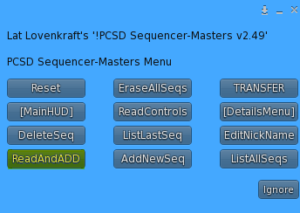
Example:

Reading ALL Sequence-Masters Line-Entries and ADDING them to the DATABASE
SequenceMaster: 003 – $SeqNick3 was ADDED Successfully !!!
2 Sequence-Master Records Read
1 NEW Sequence-Masters Added
Done

NOTE: In this demo, there are already Sequencer-Detail entries for Sequence 003.  This  was done to show you that you can create Details before you create a Master if, for example, you cannot decide, yet, what to name your master.

***********************
Pressing the ListAllSeqs button will produce the following confirmation of what the system thinks it has.
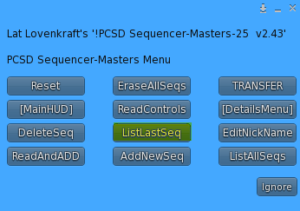
001 – $SeqNick1
002 – $SeqNick2
003 – $MySeqNick

These are the Sequencer-Masters database entries and they survive Resets.  The only way they can be removed is by explicitly pressings EraseAllSeqs button.  This will erase all  Sequence-Masters.

This will ALSO Erase all Details. Details are in another ADD-ON and contain the duration/animation name entries associated with each master entry. You can have 1 or more detail-entries per Master.   A realistic maximum is about 40 to 45 detail entries per Master, although, it is rare or unlikely you will have more than 6.

Press EraseAllSeqs.

a
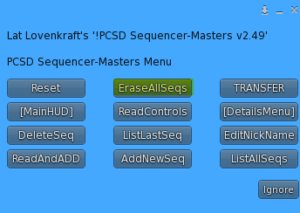
ALL SEQUENCE MASTERS and thus ALL SEQUENCES…HAVE BEEN ERASED !!!
PCSD Sequencer-Detail…All Sequencer-Details have been ERASED DUE TO Sequencer-Masters being ERASE. The Sequencer-Details DATABASE has been DELETED

Now, re-edit the *masters notecard so it looks like this

001 – $SeqNick1
002 – $SeqNick2
END

Now press ReadAndADD

Reading ALL Sequence-Masters Line-Entries and ADDING them to the DATABASE
SequenceMaster: 001 – $SeqNick1 was ADDED Successfully !!!
SequenceMaster: 002 – $SeqNick2 was ADDED Successfully !!!
3 Sequence-Master Records Read
2 NEW Sequence-Masters Added
Done

Pressing the ListAllSeqs button again will produce the following confirmation of what the system thinks it has.

001 – $SeqNick1
002 – $SeqNick2
END

Now remove the previous 2 entries and just add the following entry and press SAVE to save the notecard changes.

S,003,$MyNick3
END

Now press ReadAndADD

Reading ALL Sequence-Masters Line-Entries and ADDING them to the DATABASE
SequenceMaster: 003 – $SeqNick3 was ADDED Successfully !!!
2 Sequence-Master Records Read
1 NEW Sequence-Masters Added
Done

Pressing the ListAllSeqs button again will produce the following confirmation of what the system thinks it has.

001 – $SeqNick1
002 – $SeqNick2
003 – $MySeqNick

Now let’s add another Sequence. (Remove the last entry S,003,MySeqNick)

S,004,$MyLastNik
END

Now press ReadAndADD

Reading ALL Sequence-Masters Line-Entries and ADDING them to the DATABASE
SequenceMaster: 004 – $SeqNick4 was ADDED Successfully !!!
2 Sequence-Master Records Read
1 NEW Sequence-Masters Added
Done

Pressing the ListAllSeqs button again will produce the following confirmation of what the system thinks it has.

001 – $SeqNick1
002 – $SeqNick2
003 – $MySeqNick
004 – $MyLastNik

**************
Since we Erased all Sequences previously, this means that, while we now have 4 Sequence Masters, we have NO Sequence Details so we can not play any sequence.

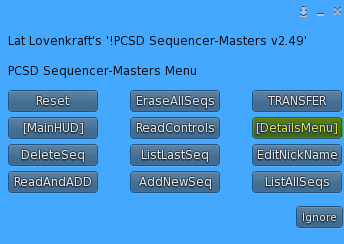
Press the [DetailsMenu] button.
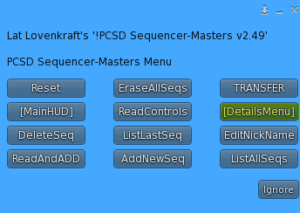
Here is where we can manage our sequence-details for any given Master.   There are still detail notecards present for 3 sequences, unless you removed them.

C,01,TestHUD,yes
C,02,TestSequencer,yes
C,03,TestSeqAudit,yes
C,04,WarnWhenMissingAnimation,no
C,05,Range,1,2
C,06,LockHudOnScreen,no
END

The Range entry in the *sequences notecard inside the Sequencer-Details Engine specifies which *seq notecards to read when choosing the ReadRngeAdd button. This makes loading faster when we only want to read a few notecards versus re-reading unnecessary notecard sequences.  Always check this entry if things are not working out. It is easy to forget.  Be sure to SAVE the notecard if you have to change it then press Reset. This will read in any new values for the Range entry.  Range,1,2 means we want to read *seq1, *seq2, and write their contents (durations and animation names)  to our Sequencer-Engine database.
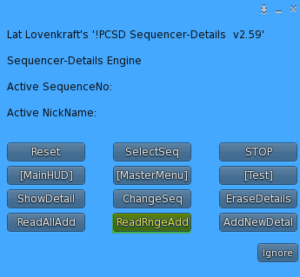
OR

If you don’t mind reading all *seq notecards, even those that have not changed, and you don’t mind paying the extra load-time penalty then choose ReadAndAdd button. This will IGNORE the Range restriction and read ALL *seq notecards

At this point, we have no details for 004, yet. We will add those using the MENU method later.

*****************
Now let’s list the 1st a sequence, 001 (*SeqNick1)

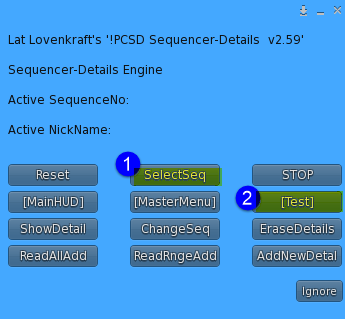
Press SelectSeq button

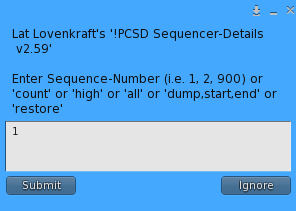
We get the following popup.
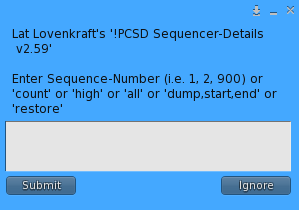
This popup is used to:
1 – Show details of a sequence, by number
2 – Choose a sequence to test, by number
3 – Change a sequence entry  (1 duration/anim)
4 – Show number of entries in the Sequencer-Engine Database
5 – Show the highest sequence-number that has detail entries (usually the last entry worked on)
6 – All will list an overview of each detail, Sequence-Number and number of line-entries
7 – Dump  will save database entries between 2 sequence-numbers inclusively by listing the information into local chat, to be copied into a notecard to be restored later, should the need arise.  This allows you to safeguard any changes made to the database using the HUD MENUS.
8 – Restore will update the database with the previous contents from a Dump command  by reading what you have copied and pasted into the *restore notecard.
The ActiveSequence is what certain subsequent
commands will depend on.

It consists of a sequence number, Example: 001 and a sequence nickname. Example: $SeqNick1.  It is possible that the nickname is not present if you chose to create Detail records before creating a Master record.
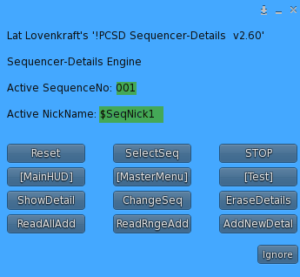
Sequence NickName: $SeqNick1

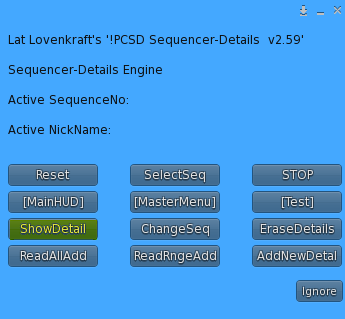
 Press ShowDetail
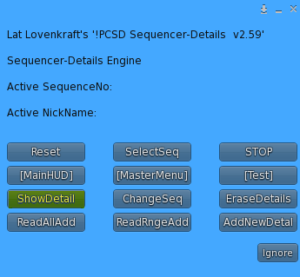
|

Sequence/NickName: 001 – $SeqNick1

SID. m:ss Seconds Duration Animation

01 | 0:0 | 0.0000 | 10.000 | Cool For School
02 | 0:10 | 10.000 | 3.0000 | Jive-1
03 | 0:13 | 13.000 | 5.0000 | Riverdance
End 0:18 | 18.000

**********************************

Ok, now let’s create our own Sequence Details for Sequence No. 003, NickName of $MySeqNick

We don’t need the existing sequence notecards. Rereading them would slow the process, especially when you start having a lot of sequences. We will save them for emergencies should we ever need to rebuild.  But we don’t need to remove them.  We just change our Range entry in the *sequences notecard from Range,1,2 to
Range,3,3.

Our new sequence-detail entries for Sequence 3 looks like this:

01 | 20.8 | tap dance
02 | 24.5 | Jive-3

In order to read in and make the new Range values active, we need to press Reset on the Sequencer-Details Menu.

Resetting Sequencer-Details Engine !!!
2452 Free Memory in: !PCSD SequenceDetails v2.60
130948 – Free DETAILS-DATABASE Available
WARNING: SEQUENCER-DETAILS HUD IS UNLOCKED
6 Configuration Entries Read Successfully !
$$$ Sequencer-Details Engine READY $$$

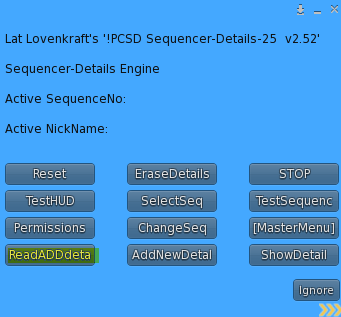
Now Press the ReadADDdeta button
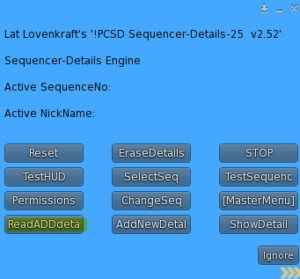
Reading range of Sequence-Details notecards between: *seq3 and *seq3 inclusively
$$$ 1 Total Sequence-Details (*seq) read Successfully $$$

Press SelectSeq button
Enter a value of 3, this time.

Sequence/NickName: 003 – $SeqNick3

SID. m:ss Seconds Duration Animation

01 | 0:0 | 0.0000 | 20.800 | tap dance
02 | 0:20 | 20.800 | 24.500 | Jive-3
End 0:45 | 45.300

*************************************
Let’s test our NEW Sequence !

3 Steps (4 Steps to Test  the Sequencer the very first time after a Reset)
These are the Button Presses.
Step 3 only needs to be done once after a Reset.

1 – Press the SelectSeq and enter the SequenceNumber of the sequence that you want to test

2 – Press [Test] to bring up the Test sub-menu

3 – Press the Permissions button. Accept Permission to animate.

4 –  Press the CopyFromMai button, to copy the animations necessary to test the selected sequence, assuming they are already in the MAIN-HUD. Or manually copy the needed animations into the Sequencer-Details Engine

*****

IMPORTANT !!!!!!!!!!! WARNING !!!!!!!!!!!

If a filename already exists, then a new filename is created in the Sequencer-Details Engine  by appending a number to the end of the new file that was copied.
FileName produces FileName 1 if FileName already exists in the destination.

FileName 1 will ALWAYS be DELETED if it exists, unless it is NOCOPY or NOMOD

Example:  Your animation is named Bollywood7.
Then, Bollowood7 1  will always be deleted UNLESS it is NOCOPY, when using either the CopyFromMai buttons.

NOCOPY animations NEVER get copied between the MAIN HUD and the Sequencer-Details Engine

*****

5 Press TestSequence (or TestHUD). 

6 – Press STOP button on Sequencer-Details Engine to STOP a sequence tested using the TestSequenc button
Main-HUD to STOP a sequence tested using the TestHUD button

m:ss Seconds  Duration Animation

0:00 – 0.000 – 20.80 – tap dance
0:20 – 20.80 – 24.50 – Jive-3
0:45 – 45.30 – 20.80 – tap dance
1:06 – 66.10 – 24.50 – Jive-3

It shows a timeline of when each dance starts so you could gauge a sequence lasting close to the length of a particular song that you like.

In this example, you can test the other sequences by starting with step 1 and entering 1 or 2 because these sequences already exist.

****************************************

Method #2: Menu Editing

We will first add a 4th new Sequencer-Master to our 3 existing Sequence Masters.

Pressing ListAllSeqs on the Sequencer-Masters Engine should produce:

001 – $SeqNick1
002 – $SeqNick2
003 – $MySeqNick
004 – $MyLastNik

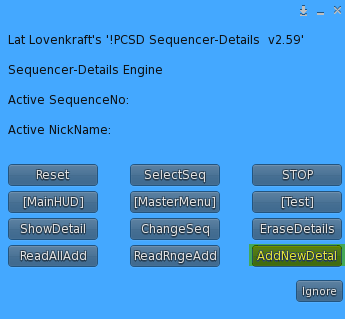
Press the AddNewDetal button
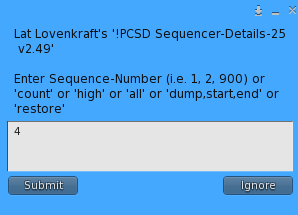
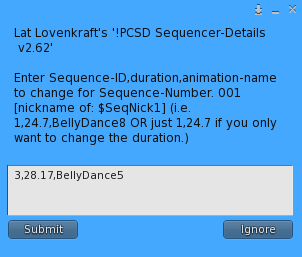
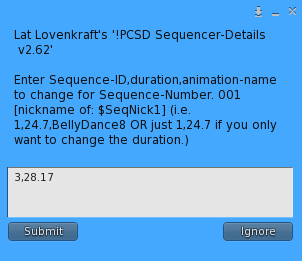
Enter 4 and Press Submit
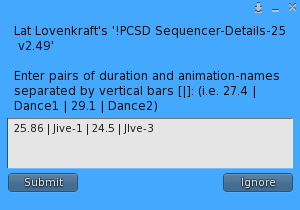
Enter the information above and Press Submit

INFORMATION: No Sequencer-Details already exist for Sequence No: 004 to ADD details to.
(this simply means that no Sequencer-Detail entries already exist for Sequence No. 004 .  It lets you know this is the 1st time and that you are not adding entries to an existing Sequence No. 004)
CREATING NEW Entries for Sequence Number: 004
New Keys Written…
004-01
004-02

(Note: The first time I entered this i got an error because i made a typo and misspelled the an animation name WARNING: Animation: 2 – JIve-3 was NOT FOUND in the Sequencer-Engine inventory. It should have been Jive-3 not JIve-3. But it added it because it realizes it is ok to add entries without actual animations existing in the Sequencer-Engine because you may intend to only test the sequences using only the MainHUD which is an option)

Pressing ShowDetail:

Sequence/NickName: 004 – $MyLastNik

SID. m:ss Seconds Duration Animation

01 | 0:0 | 0.0000 | 25.860 | Jive-1
02 | 0:25 | 25.860 | 24.500 | JIve-3
End 0:50 | 50.360

THATS IT!  You are ready to TEST Sequence No. 004

Quick and Easy!

****************************************
CONFIG

If the actual animations exist in the MAIN HUD and you want to test them in the Sequencer-Engine, then you can use the CopyFromHud button. AllowCopyFromHUD,yes is the required setting in the *masters notecard in the Sequencer-Engine.

In the *masters notecard is another entry.
C,07,SendAnimationsToHUDMethod,copy

When this value is copy, the original animation REMAINS in the sequencer-engine after copying

C,07,SendAnimationsToHUDMethod,move

When this value is move, then the original animation is DELETED after the sequencer-engine copies it to the MAIN HUD.

****************************************
CHANGING

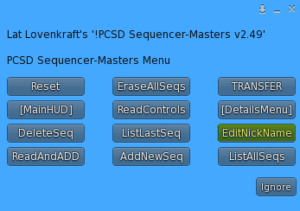
You can change (edit) the Master NickName using the
button on the Sequencer-Masters Engine Menu
 

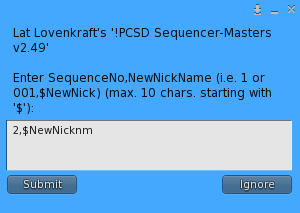
Enter the sequence number, followed by a comma followed by the new NickName (must begin with a $ and be 10 characters or less.
You can change  a detail entry (SeqID, duration, animation)
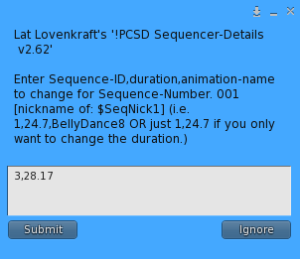
using the ChangeSeq button on the Sequencer-Details Engine Menu.  First you must select a sequence to change using the SelectSeq button. Then… press the ChangeSeq button on the Sequencer-Masters Engine Menu
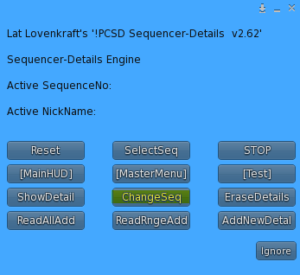
Enter the SeqID then the duration and then the actual animation name.  If you only want to change the duration, then you can omit the animation name.


B ACK TO HOME PAGE


Artiste Pro-Club Speed-Dancer

ARTISTE PRO-CLUB SPEED-DANCER HUD SYSTEM
*******************************

01 – INTRODUCTION 
02 – OVERVIEW
03 – FUNCTION BUTTONS
04 – NAVIGATION
05 – ACTIVE COLUMN
06 – NOTECARD (*dances)
07 – MENUS
08 – SPEED GRADATIONS
09 – DELETING A DANCE
10 – NICKNAMES
11 – INVITING
12 – SEQUENCING
13 – SEARCH ENGINE
14 – METRONOME
15 – CHIMERA
16 – SIT INVITER


*******************
INTRODUCTION
*******************
Artiste Pro-Club Speed-Dancer, aka 
Pro-Club Speed-Dancer is a dance HUD for club dancers who find it extremely important to be able to choose a dance/animation with a tempo matching  or most closely matching  the tempo of the song currently playing.

More-so to the point, this Dance-HUD was created to address the need to QUICKLY and EASILY find and play a dance that has a little slower tempo or little  faster tempo (or another dance with the same tempo) as the tempo of the song currently playing.

It prioritizes organization by tempo.  It depends on you deciding which dancers for faster or slower than others and assigning a speed value from 1 to 9 to each animation.  You can adjust this value at any time for a given animation.

Most people who have used it in testing only want to use 3 speeds. Slow, Medium, and Fast spread out across 3 columns.

An example of an entry you edit into the *dances notecard for each animation could look like this.

A,01,04,8,Annie-K-Pop_02,Annie-02,120

The ‘A‘ is for add. This tells the script that you are telling it about a dance called Annie-K-Pop_02 and it will show up on the HUD as Annie-02, and the 8 says it will show up in Column1.  01 is the loadset and 04 means it is the 4th dance in loadset  #01.

You will spend 90% of your time creating entries like this, one for each animation.  This example has speed of 8 and will end up in the left most column and is being designated ,by your choice, of it being a FASTer dance.  The actual animation name is Annie-K-Pop_02,but it will appear in on the HUD as Annie-02 because you chose the shorter name, with a BPM speed of 120. BPM speeds are optional as we don’t always know this value but it IS included on Paragon dances in the properties of the animation.  BPM speeds are only used to help in sorting and has no effect on anything.  Larger BPMs will occur/sort at the top, with lower BPMS at the bottom when the sort order is by SPEED.

This is the 4th dance (04)  in a LoadSet called 01.  You can have up to 30 dances in a given loadset.  You can have 30 loadsets. 30×30 =900 total dances per HUD.

Most early HUD users and adopters have chose to only use 3 speed values. 8, 5, and 2; 8 for fast, 5 for medium, and 2 for slow.  This may be all you will ever need.  This is the simplest approach.

You can sort each column by Dance-Speed or by Dance-NickName or by DanceId (the 04 value).

Another example below:

A,01,01,4,Leni_01,Leni-1,0
A,01,02,6,Leni_02,Leni-2,0
A,01,03,8,Leni_03,Leni-3,0


This HUD organizes dances by speed from fastest to slowest.  It makes use of: 1) Columns, Colors, Speed Numbers, and BPM.

It can sort columns by Speed/BPM OR alphabetically by NickName of the animation OR by DanceId Order.


Async Trainer

Async Trainer, while not required, is EXTREMELY convenient in preparing and testing Async Commands.  The alternative is typing the commands in local chat.

Buttons

The StopAsync button is very handy for interrupting a looping type command.

The ChatRaw button is the work-horse button.  It opens up a textbox where you enter your command.  The command includes a channel and then the command string.  Multiple commands can be entered that execute in succession. You can use the DELAY command to space out and more precisely execute multiple commands.

Optionally, an abbreviated form is offered to you which starts with a period (.).  This will insert the channel and /A/T/targetname/ before your entered text to save you some typing

As shown below, you can enter any channel and command.  It is not limited to the Async command family.


RepeatLast

This is such a handy button, which is the button I use the 2nd most often. It simply repeats the last command entered.


ReHome

Upon reset, the Async script saves the position and rotation.  ReHome will send the Async object back to this saved position and rotation from anywhere in the region.

ComeHome

Not sure if this will be needed often, if ever, but it will return the item to where the avatar is standing or sitting if it is within 96meters. Otherwise it works like ReHome


NewTarget

The initial default target is entered and will be retrieved upon RESET to the default target specified in the *trainer notecard inside the Async Trainer. See below. The default target is called Pyramid in this example:

*trainer
AsyncTarget,Pyramid
AsyncChannel,-369
END

The NewTarget allows you to override /change the Default Target after RESET.

Commands

This lists all the available commands (type/command).  It is only a suggestive list to serve as quick reminders after you have already studied its format from the official help page ==>Async – StoryTeller


ResetTrainer

Use this button when ever you change any of the notecards inside this Async Trainer


ResetAsync

This is a convenient way t reset the target containing the Async Script and/or GlowFader script. Reset the Async Object whenever you change its  Async Notecard, OR, rename the TRACE_ON, TRACE_OFF object, OR, need to change the initial position and rotation.


Archives

This button allows you to retrieve often used working commands. It will execute it. You do not paste it anywhere. It is up to you to choose category names and which commands you want to put into that category.  It comes with a default category called Test1.

Create the categories in the *archives notecard.  The 1st category listed will correspond to the *archives1 notecard.  The 2nd category will correspond to the *archives2 notecard.  Etcetera.

You do not enter a channel or command.  Archives use the default channel and default target.  See examples below:

/* Assumed prepend of channel/Async/A/T/(asyncTarget) for command
1-FadeHide,/E/fadehide/15^ALL
2-FadeShow,/E/fadeshow/25^ALL
3-Hide&Show,/E/fadehide/25^ALL/D/D/3/E/fadeshow/15^ALL/
END


Help

Contains most if the information listed here.


Relay (Follower-Relay)

RLV Relay aka Follower-Relay

These are the current features available while wearing the Relay assuming it is configured properly and enabled.  Commands are case insensitive.

Sit-On-Link  –  this feature allows a forced sit on a particular link

AdornSwapX –  detaches from “s”, attaches from “t”

AdornSwapY – detaches from “t”, attaches from “s”

AdornRemoveS – detaches from “s”

AdornRemoveT – detaches from “t”

DefaultBoth – applies the same animation to both DefaultSit and DefaultStand

DefaultSit – applies the animation to the DefaultSit

DefaultStand – applies the animation to DefaultStand

ForceSit forces the avatar to sit on the designated object with the designated key

GetKey or Sit2Sit forces the avatar to sit on the designated object with the designated object-name.  This works region-wide.

UnSit – forces the avatar wearing the relay to stand-up.

Wear – Attaches all of the items in the specified folder to the assumed or specified attach-point WITHOUT removing any existing items attached to the attach-point

UnWear – Detaches all of the items in the specified folder to the assumed or specified attach-point WITHOUT removing any existing items attached to the attach-point

Replace – Attaches/Wears all of the items in the designated folder onto the assumed or specified attach-point, removing any and all existing items.

Adorn – This command uses the 1st character of the folder name to  direct its actions.
a = attach
= detach
r = replace

” removes everything from the specified folder prepended by a or AND anything in the !RemoveDetach folder.  The !RemoveDetach folder was created to allow you to remove, usually, a single item from an attach-point that has multiple items attached.

Teleport – Teleports the avatar to the specified location

The UnAttended Controller

This device controls stand-alone unattended performances.

It can control the:

Artiste Performance HUD
OR
Artiste SmartDancer
OR
an external vendors scheduling tool

It can regularly schedule a device to run periodically, like once every hour
OR
It can schedule a  device to run when there are at least a certain number of people nearby.

It is VERY EASY to use.

You specify some parameters in a notecard.

Then you press either the  SCAN or INTERVAL button.

That’s IT?

********************

Commands for our Performance HUD are:

HUD
*********
We use the EXT_TO_HUD entry for channel

Commands to start, stop, and reset are below.
You will need the latest HUD version  v12.32 – v8.03 or later

PLAY_HUD
STOP_HUD
RESET_HUD

********************
*unattended notecard sample

/* Style = scan or interval
Style,scan
UnAttendedToHudOrSDChannel,-934232107
StartCommand,PLAY_HUD
StopCommand,STOP_HUD
ResetCommand,RESET_HUD
/*Intermission – this happens (optionally) after the repeats
Intermission,yes
IntermissionDuration,30
ResetOnIntermission,yes
/* Repeats
Repeats,2
PauseBetweenRepeats,10
/* Scan
Rate,10.0
Range,24
ScanMinimumPresent,1
/* Interval – (in seconds)
Interval,30
IntervalMinimumPresent,2
ClockTime,0
END

*****************
Explanations:

*****************
Style entry is either scan or interval (lowercase)

Choose scan if the performance is based on 1 or more avatars being present.

Choose interval if you want to performance to run periodically regardless of who is nearby.

*****************
UnAttendedToHudOrSDChannel
This the channel that the Stop,Start, and Reset commands will be sent over. For the Artiste Performance HUD, it must match the EXT_TO_HUD entry in the *config nc

The channel from the Artiste SmartDancer Controller is in the *channels nc called ChannelForFromArtisteHUD

*****************
StartCommand
This is the command that the UnAttended Controller will send over the UnAttendedToHudOrSDChannel when the Start button is pressed.

*****************
StopCommand
This is the command that the UnAttended Controller will send over the UnAttendedToHudOrSDChannel when the Stop button is pressed.

*****************
ResetCommand
This is the command that the UnAttended Controller will send over the UnAttendedToHudOrSDChannel when the Reset button is pressed.

*****************
Intermission
This is ‘yes‘ or ‘no‘.
If ‘yes‘ then there will be an intermission or pause for the number of seconds on the IntermissionDuration entry that follows all of the repeats.  This allows for an optional reset of the HUD or SD or external processor.

*****************
IntermissionDuration
This is how long, in seconds, that the intermission will last, assuming Intermission,yes  exists

*****************
ResetOnIntermission,yes
If ‘yes‘ then a Reset command will be sent over the UnAttendedToHudOrSDChannel channel

*****************
Repeats,2
If style is scan then this is the number of times the routine will repeat before it scans again for the minimum number of people that need to be present to run again.

*****************
PauseBetweenRepeats,15
This is the amount of time in seconds between repeats.  The routine will pause for this amount of time.

*****************
Rate,10
When style is scan, this is how often the area will be scanned for tje minimum amount of people that need to be present in order for the routine to kick off

*****************
Range,24
When style is scan, this value can be a value between 1 and 96.  This is the distance from the center of the controller that is scanned for the minimum number of avatars nearby that need to be present in order for the routine to kick off.

*****************
ScanMinimumPresent,1
When style is scan, this is the MINIMUM amount of people that must be nearby, within the range specified, in order for the routine to kick off.

*****************
Interval,3600
When style is interval, this is how much time, in seconds, regularly  passes, in between performances.

*****************
ClockTime,0
When style is interval,  this is how many minutes  after the hour that a routine runs.  If Interval is zero then,  ClockTime is used. A Zero value for ClockTime would be once on the hour. i.e. 1:00pm, 2:00pm, 3:00pm etc.  If 15 then 1:15pm, 2:15pm, 3:15pm etc.

*****************
IntervalMinimumPresent,1
When style is interval this is the MINIMUM amount of people that must be nearby, within the the scan range specified, in order for the routine to kick off.  If not enough people are present then it will wait for the next interval before trying to run again.   So  if you want a routine to run once every hour on the hour then 60 seconds times 60 minutes = 3600 seconds.  If this value is zero then the interval-ed routine will ALWAYS run whether anyone is near by or not.  People who arrive after it begins will catch the  routine in the middle.


Artiste MasterRezzer – TIPS

I have found this method of operation useful for basic operations.

1 – Add new entry in *set? nc inside the master rezzer for the proper set you are working on.

2 – RELOAD the MasterRezzer

3 – ADD *setchild nc into the new object to rez

4 – INSURE the SETID is set to proper set.

5 – INSURE InitialShowHide is set to transparency you wish to appear upon rez.

6 – ADD TPT – ChildRezzer v8.18 script. (Note: There may be a more recent version when you read this). Adding this script will send the needed information from the Child to the MasterRezzer.  There is no need to Reset.

7 – Copy (or Replace) the Child Object into the MasterRezzer.

8 – Test Rez your changes.

If you need to move and/or rotate the Child OR make changes to the *setchild nc then you can simply press ReloadChild button on the child.

Be sure to FREEZE the MasterRezzer, if you find that you have to RESET a Child. You do NOT have to FREEZE the MasterRezzer if you simply RELOAD the Child

*************************

You may very likely need to increase the RezDelay time for certain Children.  The rotation can take extra time, enough that the rotation might not complete after you try your rez at the show-venue, even though it worked at your staging/development platform. The item may not have needed a rotation there but will require one at the show-venue. So be prepared to increase the delay time.  There is a *rezdelays nc that i use. Simply add the name of the Child followed by a comma followed by the RezDelay desired in seconds.

**************************

Rezzing just ONE object from:
Chat, SD, Async, etc.

468,setrezr/Rezz2/Fireplace

468 is the configurable chat channel for the ArtisteMasterRezzer
setrezr(or set_rezr) is the command
Rezz? is the action  and set the object to rez belongs to, in the example it is 2
Fireplace is the name of the object to rez and must be in the MasterRezzer

The objects need to have gone thru the process of prepared in a set and stored in the MasterRezzer prior to using this method

**************************

Highlighting prevents child from hiding when hide all or fading set to hide is invoked

ChannelForMaster2Child,-722322179

Trainer:

-722322179,Highlight/Crow
-722322179,UnHighlight/Crow

**************************
Selective Kill on Object

Requires Async

-369,Async/A/Target/Mermaid&Tank/E/KILL_MESH/

**************************

DefaultSitAnim

Wear the Artiste DefaultSit Attachment v1.0
Add default sit animation entries into *defaultsitanims nc

*defaultsitanims nc
ScriptDesk,0315.Stand and Read-F-A

Send command in chat:  
-987987,DefaultSitAnim,(abbrev name of defaultSitAnim)
Ex:
-987987,DefaultSitAnim,ScriptDesk